Loading...
Loading...
Loading...
Loading...
Loading...
Loading...
Loading...
Loading...
Loading...
Loading...
Loading...
Loading...
Loading...
Loading...
Loading...
Loading...
Loading...
Loading...
Loading...
Loading...
Loading...
Loading...
Loading...
Loading...
Loading...
Loading...
Loading...
Loading...
Loading...
Loading...
Loading...
Loading...
Loading...
Loading...
Loading...
Loading...
Loading...
Loading...
Loading...
Loading...
Loading...
DEGEN MODE:
When turned ON, Degen Mode will attempt to buy immediately as soon as the token address is entered, even before the token menu appears. It will try to execute the purchase regardless of the wallet balance.
Once the token is sold, it won’t attempt to rebuy, even if auto-buy is enabled.
🟢 ON – Automatically buy a coin when the coin address is pasted. 🔴 OFF – Manually start buy when the coin address is pasted.
Access settings easily from ⚙️ Settings menu or by using the /settings command.
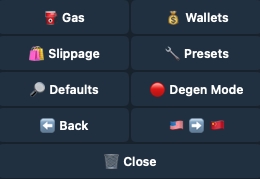
Click 🔴 Degen Mode.
Access settings easily from ⚙️ Settings menu or by using the /settings command.
Click 🔎 Defaults.
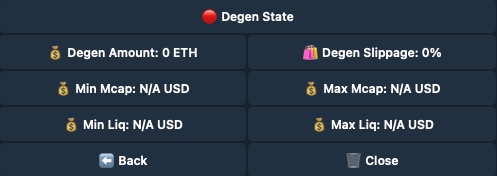
Max MCap
Set the maximum market cap you are willing to buy at.
Min Liq
Set the minimum ETH liquidity needed to buy.
Max Liq
Set the maximum ETH liquidity needed to buy.
Back
Return to the previous page.
Close
Close the current menu.
Degen State
Turn auto buy On and Off.
🟢: Active
🔴: Inactive
Degen Amount
Choose the preset ETH amount to buy.
Please enter your desired auto buy amount in ETH:
Degen Slippage
Set the slippage percentage.
Please enter your desired auto buy slippage amount in %:
Min MCap
Set the minimum market cap you are willing to buy at.
🗑️ Close
Close the current menu.
Set Name
Rename wallet.
Please enter your desired wallet name:
Delete
Delete wallet.
(example)
Manage wallet.
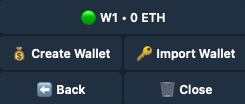
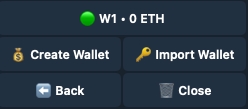
💰 Create Wallet
Create a new wallet. Get the private key and address. Make sure to copy and save the private key!
💰 Import Wallet
Import an existing wallet.
Please enter your private key:
⬅️ Back
Return to the previous page.
Default
Set wallet as default. To change the default wallet, set the new one as default.
🟢: Active
🔴: Inactive
Copy
Set wallet as default for copy-trading. Change by selecting a new one.
🟢: Active
🔴: Inactive
Sniper
Activate as sniper wallet.
Note: Multiple wallets can be activated.
🟢: Active
🔴: Inactive
Spot
Activate as spot buy and sell wallet.
Note: Multiple wallets can be activated.
🟢: Active
🔴: Inactive
Max Buy Tax
Set the maximum allowable token buy tax percentage required for the purchase to be executed.
Please enter your desired amount:
Max Sell Tax
Set the maximum allowable token buy tax percentage required for the purchase to be executed.
Please enter your desired amount:
Min Liquidity
Set the minimum pool liquidity required to execute the transaction.
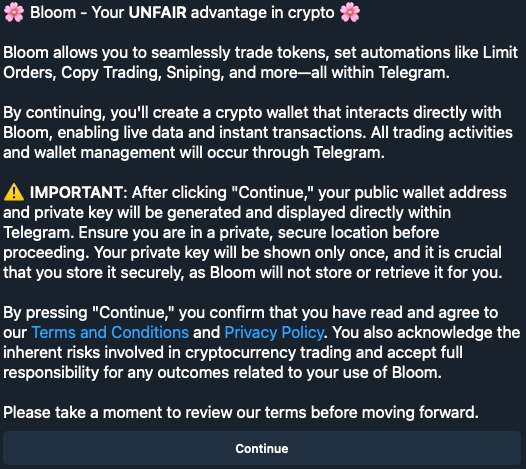
Welcome to Bloom! Below you’ll find the first steps to get started.
It’s essential to manage your private key carefully—be sure to save it in a secure place, as it won’t be retrievable if you tap on 🚀 Start Trading for security reasons. Follow the steps below to ensure your account is set up safely and ready for trading.
🗑️ Close
Close the current menu.
MEV Protect
When MEV Protect is enabled, your transactions will be processed through BloXroute to prevent getting MEVed. If disabled, transactions will be routed through the custom node.
🟢: Active
🔴: Inactive
Private PNL
When enabled, the PnL card will hide the following amounts: Profit/Loss value and percentage.
🇺🇸 🇨🇳 🇷🇺
Switch language: • English • Chinese • Russian
⬅️ Back
Return to the previous page.
Start a regular Selltask by entering the token address.
Click 📈 Limit Orders.
Sell Amount
Choose the ETH amount to sell.
Enter the % for the Take Profit and Stop Loss.
Please enter your desired amount: (ETH, %, hours)
Expiry
Set the order expiration time in hours (eg. 6H).
Please enter your desired amount: (ETH, %, hours)
Sell Gas
Set the transaction gas (Max Priority Fee) for selling. Max Fee is automatically calculated using the formula: Base Fee + (Priority Fee × 2).
Please enter your desired amount: (ETH, %, hours)
Slippage
Set the buy slippage percentage.
Please enter your desired amount: (ETH, %, hours)
Follow the steps below to set up your take profit strategy.
Enter the Take Profit percentage with + in front of the value (eg. +50) in 💰 Market Cap or 💰 Price according to your target.
Setup the order as a regular Limit Sell one.
Follow the steps below to set up your stop loss strategy.
Enter the Stop Loss percentage with - in front of the value (eg. -50) in 💰 Market Cap or 💰 Price according to your target.
Setup the order as a regular Limit Sell one.
Continue.
It’s essential to manage your private key carefully—be sure to save it in a secure place.
The main menu will appear.
As you just began your journey with Bloom, we recommend the following:
Join our Lounge channel through the Portal.
Read Bloom's guides
Reading the guides is essential to avoid mistakes and ensure the best trading experience.
After completing the initial steps outlined above, simply tap 🚀 Start Trading to enjoy Bloom full potential.

With Bloom, you can easily manage multiple wallets all in one place. Whether you're handling various portfolios or diversifying your trades, multi-wallet support gives you the flexibility to stay organized and efficient.
You can:
Create, import, and manage multiple wallets effortlessly from your account.
Track positions and performance across all wallets.
Set a default wallet for easy transactions, while having the option to switch between others as needed.
Refer to the for more in-depth guidance.
Access 🔧 Presets easily from the ⚙️ Settings menu or by using the /settings command.
Click 🔧 Buy Presets.
Only deposit ETH through the Ethereum network to avoid losing funds. Always double-check your wallet address before confirming any transfers.
When you first joined Bloom, a wallet was automatically generated for you, and you can find your wallet address by navigating to the Wallets section in the menu or by running the /wallets command.
Once the transfer is initiated, it may take a few moments for the ETH to appear in your Bloom wallet. Just refresh the page to check if the deposit has arrived.
Bridging lets you move tokens from one blockchain (like Solana) to another (like Ethereum or Base) by locking or burning them on the original chain, then minting or unlocking an equivalent amount on the target chain. This process relies on cross-chain communication protocols or specialized smart contracts to verify that tokens were locked on the source chain before creating the new tokens on the destination. As a result, you maintain the same overall value while gaining access to DeFi opportunities that are unique to each blockchain.
Access 🔧 Presets
Access 🔧 Presets easily from the ⚙️ Settings menu or by using the /settings command.
Welcome to Bloom, your unfair advantage in crypto. Whether you're here to take advantage of the latest token launches or trade confidently with our suite of powerful features, we’re excited to help you grow and succeed.
At Bloom, we aim to be your go-to cross-chain trading bot, offering seamless and reliable solutions. With this guide, you will be able to harness the full potential of our bot, learning to trade efficiently and master the tools we provide.
We’re proud to offer highly performing features, designed with both novice and expert traders in mind.
Here’s what you can expect from Bloom on Ethereum:
Cross-chain
Access 🔧 Presets easily from the ⚙️ Settings menu or by using the /settings

AFK
Spot Buys
Quick Sell
Copy-Trading
Limit Orders
Safety Features
Blazing Fast Transactions
And so much more!
With this guide, you’ll quickly become familiar with Bloom's interface, features, and strategies to make the most out of your trading experience. Let’s get started and watch your trading potential bloom! 🌸

Create the orders directly through the buy and sell menu or pre-create them from Spot Presets • Auto Orders
Set the transaction gas (Max Priority Fee) for buying. Max Fee is automatically calculated using the formula: Base Fee + (Priority Fee × 2).
Please enter your desired amount:
Sell Gas
Set the transaction gas (Max Priority Fee) for selling. Max Fee is automatically calculated using the formula: Base Fee + (Priority Fee × 2).
Please enter your desired amount:
Approve Gas
Set the desired gas amount to approve the token to be sold
Please enter your desired amount:
Back
Return to the previous page.
Close
Close the current menu.

Buy Gas
Tier 1
0-100
None
Tier 2
101-500
At least 5 ETH
Tier 3
501-1000
At least 10 ETH
Tier 4
1001-2000
At least 50 ETH
Tier 5
2000+
At least 100 ETH
To run up to 100 tasks, there is no fee requirement.
To run more than 100 tasks, each trader must have generated at least 5 ETH in platform fees.
To run more than 500 tasks, each trader must have generated at least 10 ETH in platform fees.
To run more than 1000 tasks, each trader must have generated at least 50 ETH in platform fees.
To run more than 2000 tasks, each trader must have generated at least 100 ETH in platform fees.
Close
Close the current menu.
0.5 ETH (example)
Set the preset ETH amount for buys.
Please enter your desired buy amount in ETH:
1 ETH (example)
Set the preset ETH amount for buys.
Please enter your desired buy amount in ETH:
2 ETH (example)
Set the preset ETH amount for buys.
Please enter your desired buy amount in ETH:
Back
Return to the previous page.
When you bridge through Bloom, you’ll earn deBridge points just as if you were bridging directly via deBridge itself.
To access the bridging menu, type /bridge or select the command directly from the ✈️ Bridge menu.
Select the target receiver blockchain (SOL, BSC, BASE or HYPER EVM). Only one option can be active at a time.
You can set either one or both receiving addresses—EVM (BSC, ETH, BASE, HYPER EVM) and SOL—depending on your needs. Tap 💸 Set EVM Address and/or 💸 Set SOL Address, then enter your receiver address for the blockchain you’ve selected.
Double-check that all details match, then tap ✈️ Bridge to transfer your funds.
Protecting your funds is our top priority, and we’ve implemented a safety feature to help safeguard your wallet: Address Locking.
EVM and SOL addresses can be locked or unlocked independently.
Trade effortlessly – You can potentially make profits even while you’re away, as the bot manages trades for you.
Tailored settings – You control how the bot operates with various parameters, ensuring it aligns with your trading strategy.
Multi-Testing – With AFK Mode, you can run multiple trading setups simultaneously to find the most profitable and reliable strategy.
Setting up AFK Mode properly requires time and effort. A well-configured setup can maximize your chances of success, but it’s essential to carefully adjust the parameters to fit your goals.
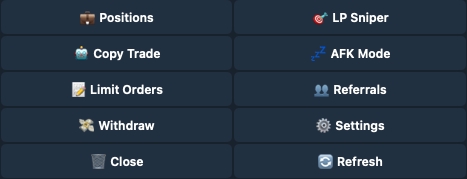
Access 💤 AFK Mode easily from the home menu or by using the /afk command.
Tap 🆕 Add new config.
Add new config
Add a new AFK configuration.
Pause All
Pause all active AFK configurations.
Start All
Start all the AFK configurations.
Back
Return to the previous page.
⚙️ Settings/settingsClick 📈 Spot Presets.
Click 🆕 Create Limit Order.
Dev Sell
Choose whether to Choose whether to automatically sell the specified amount if the Dev sells any of their tokens. If enabled, the bot will ignore the set profit/loss percentage and only trigger a sale when the Dev sells.
🟢: Active
🔴: Inactive
Sell Amount
Set the % you would like to sell.
Please enter your desired amount:
Profit/Loss
Set take profit or stop loss. • 📈 Take Profit: Use positive values (e.g., +100% for 2x)
• 📉 Stop Loss: Use negative values (e.g., -50% for half)
Please enter your desired amount:
Sell Gas
Set the transaction gas (Max Priority Fee) for selling. Max Fee is automatically calculated using the formula: Base Fee + (Priority Fee × 2).
Please enter your desired amount:
Click 🔧 Sell Presets.
1 % (example)
Set the preset percentages for sells.
Please enter your desired sell amount in %:
5 % (example)
Set the preset percentages for sells.
Please enter your desired sell amount in %:
10 % (example)
Set the preset percentages for sells.
Please enter your desired sell amount in %:
Back
Return to the previous page.
Buy Slippage
Set the buy slippage percentage.
Please enter your desired buy slippage amount in %:
🛍️Sell Slippage
Set the sell slippage percentage.
Please enter your desired sell slippage amount in %:
Dev Sell
Choose whether to automatically sell the specified amount if the Dev sells any of their tokens. If enabled, the bot will ignore the set profit/loss percentage and only trigger a sale when the Dev sells.
🟢: Active
🔴: Inactive
Market Cap
Enter the target market cap value.
Price
Enter the percentage of the current price at which you want to create the order.
Create Limit Order
Create the limit order.
Back
Return to the previous menu.
Refresh
Refresh the menu.
Close
Close the current menu.


Click on 🤖 Copy Trade in the home menu or use the /copy command.
Click 🆕 Add New Config or and already existing config.
Click 📈 Limit Orders.
Click 🆕 Create Limit Order.
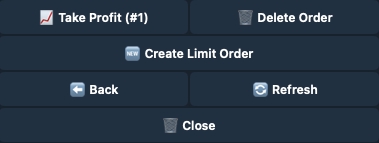
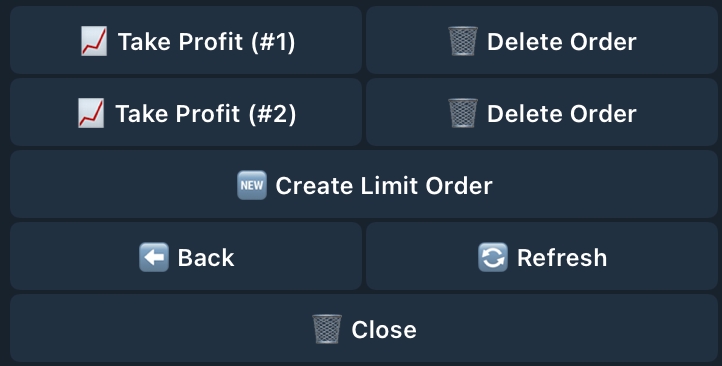
Once the orders are created, you can edit them by selecting the target order or cancel them by clicking 🗑️ Delete Order in the dedicated menu, as shown below.
Always keep your address locked when not making updates. It’s one of the most effective measures to protect your funds from unauthorized access or malicious attacks.
Access the withdraw menu from the 💸 Withdraw button on the home menu or by using the /withdraw command.
Click on 💤 AFK Mode in the home menu or use the /afk command.
Click 🆕 Add New Config or and already existing config.
Click 📈 Limit Orders
Min Value
Specify the minimum value for positions you want to display in your portfolio.
Please enter your desired min position value in ETH:
Sell Position
Refer to the guide below.
USD
Show the position value in USD.
🟢: Active
🔴: Inactive
Homepage
Get back to the main menu.



Dev Sell
Choose whether to automatically sell the specified amount if the Dev sells any of their tokens. If enabled, the bot will ignore the set profit/loss percentage and only trigger a sale when the Dev sells.
🟢: Active
🔴: Inactive
Market Cap
Enter the target market cap value.
Price
Enter the percentage of the current price at which you want to create the order.
Create Limit Order
Create the limit order.
Back
Return to the previous menu.
Refresh
Refresh the menu.
Close
Close the current menu.
Buy Amount
Choose the ETH amount to buy.
Please enter your desired amount: (ETH, %, hours)
Expiry
Set the order expiration time in hours (eg. 6).
Please enter your desired amount: (ETH, %, hours)
Buy Gas
Set the transaction gas (Max Priority Fee) for buying. Max Fee is automatically calculated using the formula: Base Fee + (Priority Fee × 2).
Please enter your desired buy fee amount in GWEI:
Slippage
Set the buy slippage percentage.
Please enter your desired amount: (ETH, %, hours)

Back
Return to the previous menu.
Close
Close the current menu.
Sell Amount
Enter the % to be sold for the Take Profit and Stop Loss.
Please enter your desired amount:
Profit/Loss
Set take profit or stop loss. • 📈 Take Profit: Use positive values (e.g., +100% for 2x)
• 📉 Stop Loss: Use negative values (e.g., -50% for half)
Please enter your desired amount:
Buy Sell
Set the transaction gas (Max Priority Fee) for selling. Max Fee is automatically calculated using the formula: Base Fee + (Priority Fee × 2).
Please enter your desired amount:
Slippage
Set the buy slippage percentage.
Please enter your desired amount:

50%, 100%
Preset percentage of ETH you want to withdraw (e.g. 50% withdraws half your funds).
X ETH
Edit the amount of ETH you wish to withdraw.
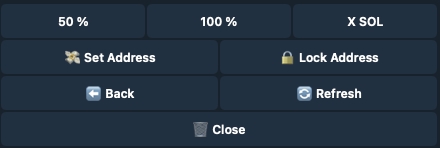
Set Address
Set the address to receive your funds.
Please enter your ETH on Base network withdrawal address:
Lock Address
Lock your address to prevent changes. This safety measure ensures that no malicious party can modify the address or withdraw your funds for 24 hours unlocking it.
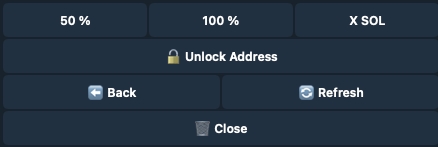
Unlock Address
Unlock your address if you need to make changes. A 24-hour security cooldown will be applied before any modifications are allowed.
Back
Protecting your funds is our top priority, and we’ve implemented a safety feature to help safeguard your wallet: Address Locking.
↔️ Switch to BuySwitch to Sell
Refresh
Refresh the menu.
Approve
Approve the wallet for selling.
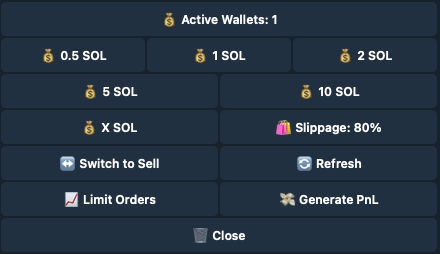
Active Wallets
Choose the wallets you want to trade with.
To buy with multiple wallets, you need to activate them first. Follow these steps:
Click 💰 Active Wallets.
Activate or deactivate wallets based on your preferences.
Once done, click ⬅️ Back to return to the buy menu.
Click 🆕 Create Limit Order.
Dev Sell
Choose whether to automatically sell the specified amount if the Dev sells any of their tokens. If enabled, the bot will ignore the set profit/loss percentage and only trigger a sale when the Dev sells.
🟢: Active
🔴: Inactive
Sell Amount
Enter the % to be sold for the Take Profit and Stop Loss.
Please enter your desired amount:
Profit/Loss
Set take profit or stop loss. • 📈 Take Profit: Use positive values (e.g., +100% for 2x)
• 📉 Stop Loss: Use negative values (e.g., -50% for half)
Please enter your desired amount:
Slippage
Set the slippage percentage.
Please enter your desired amount:
Once the orders are created, you can edit them by selecting the target order or cancel them by clicking 🗑️ Delete Order in the dedicated menu, as shown below.
Level 1
Shows the number of users you’ve referred on Level 1 (25% revenue share) along with their total traded volume.
Level 2
Shows the number of users you’ve referred on Level 2 (3% revenue share) along with their total traded volume.
Level 3
Shows the number of users you’ve referred on Level 3 (2% revenue share) along with their total traded volume.
Total Unclaimed
Displays your unclaimed fees.
Total Claimed
Displays the total amount of fees you’ve claimed.
Lifetime Earnings
Shows your lifetime earnings.
Last distribution
Indicates the most recent payout date.
Tap 🔑 Change Referral Code, and enter your desired name after the prompt appears: Please enter your desired referral code (Max 10 characters).
Close
Close the current menu.

Slippage
Set the buy slippage percentage.
Please enter your desired amount:
Back
Return to the previous menu.
Refresh
Refresh the menu.
Delete Order
Deletes the target order.

Close
Close the current menu.


To set up the task, click on the configuration.
Max Traded Tokens
Specify how many of the target account’s posted contracts you want the bot to purchase. Eg. • If you enter 1, Bloom will only buy the first contract posted. • If you enter 2, Bloom will buy both the first and the second contracts posted.
If you change target account, the parameter won't reset.
Please enter your desired amount:
Buy
Choose the ETH amount to buy.
Please enter your desired amount:
Access the orders menu by running the /orders command.
You will be prompted to the following menu, where you can view the coins with active orders.
Select the coin for which you want to open the orders menu. The menu shown in the image below will appear.
This menu provides an overview of all your current open orders for the selected coin. By clicking 🗑️ Delete Order, you can cancel the corresponding order displayed on the left.
Access 🔧 Presets easily from the ⚙️ Settings menu or by using the /settings command.
Your Referral Code: https://t.me/BloomEthereum_bot?start=ref_BLOOM

🔗 You can quickly copy and share your referral code by tapping on it.

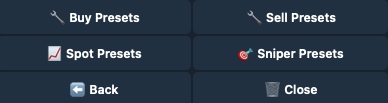
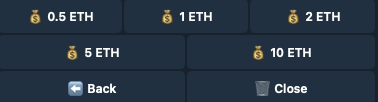
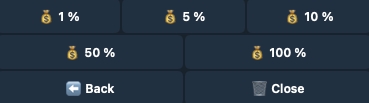
Click 💤 AFK Presets.
Max Traded Token
Set the maximum number of coins the bot will purchase according to your current configuration.
Please enter your desired amount:
Buy
Choose the ETH amount to buy.
Please enter your desired amount:
Gas
Set the transaction gas (Max Priority Fee) for buying. Max Fee is automatically calculated using the formula: Base Fee + (Priority Fee × 2).
Please enter your desired amount:
Slippage
Set the buy slippage percentage.
Please enter your desired amount:
Click 📈 Limit Orders.
Click 🆕 Create Limit Order.
Dev Sell
Choose whether to automatically sell the specified amount if the Dev sells any of their tokens. If enabled, the bot will ignore the set profit/loss percentage and only trigger a sale when the Dev sells.
🟢: Active
🔴: Inactive
Sell Amount
Set the % you would like to sell.
Please enter your desired amount:
Profit/Loss
Set take profit or stop loss. • 📈 Take Profit: Use positive values (e.g., +100% for 2x)
• 📉 Stop Loss: Use negative values (e.g., -50% for half)
Please enter your desired amount:
Sell Gas
Set the transaction gas (Max Priority Fee) for selling. Max Fee is automatically calculated using the formula: Base Fee + (Priority Fee × 2).
Please enter your desired amount:
↔️ Switch to SellSwitch to Buy
Refresh
Refresh the menu.
Approve
Approve the wallet for selling.
Active Wallets
Choose the wallets you want to trade with.
To buy with multiple wallets, you need to activate them first. Follow these steps:
Click 💰 Active Wallets.
Activate or deactivate wallets based on your preferences.
Once done, click ⬅️ Back to return to the buy menu.
Return to the previous page.
Refresh
Refresh the menu.
Close
Close the current menu.
0.5 ETH (example)
Choose the preset ETH amount to buy.
1 ETH (example)
Choose the preset ETH amount to buy.
2 ETH (example)
Choose the preset ETH amount to buy.
X ETH
Choose a custom ETH amount to buy.
Please enter your desired buy amount in ETH:
Buy Gas
Set the transaction gas (Max Priority Fee) for buying. Max Fee is automatically calculated using the formula: Base Fee + (Priority Fee × 2).
Please enter your desired buy fee amount in GWEI:
Slippage
Set the slippage percentage.
Please enter your desired buy slippage amount in %:
MEV Protect
your transactions will be processed through BloXroute to prevent getting MEVed. If disabled, transactions will be routed through the custom node. ❓ FAQs
🟢: Active
🔴: Inactive
Limit Orders
Generate PnL
Generate the PnL pic.
PnL pic to be shared.
Hide Position
Hide the current position.
Close
Close the current menu.

Back
Return to the previous menu.
Close
Close the current menu.

Gas
Set the transaction gas (Max Priority Fee) for buying. Max Fee is automatically calculated using the formula: Base Fee + (Priority Fee × 2).
Please enter your desired amount:
Slippage
Set the buy slippage percentage.
Please enter your desired amount:
MEV Protect
your transactions will be processed through BloXroute to prevent getting MEVed. If disabled, transactions will be routed through the custom node.
🟢: Active
🔴: Inactive
Social Handle
Set the social URL or just the username with no @.
Please enter your desired social handle to track:
Social Post
🟢: When enabled, Bloom automatically buys posted contracts according to your settings. (Including quoted reposts where the contract is taken from the quoted text).
🟢: Active
🔴: Inactive
Social Reply
🟢: When enabled, Bloom automatically buys contracts posted in a post reply according to your settings.
🟢: Active
🔴: Inactive
Social Bio Update
🟢: When enabled, Bloom automatically buys contracts posted in bio the moment the bio changes according to your settings.
🟢: Active
🔴: Inactive
Social Repost
🟢: When enabled, Bloom automatically buys contracts posted in the original reposted post, following your settings.
🟢: Active
🔴: Inactive
Limit Orders
Refer to the dedicated guide.
Active
🟢: Active
🔴: Inactive
Duplicate Config
Duplicate the current config.
Delete Config
Delete the current config.
Back
Return to the previous page.
Refresh
Refresh the menu.
Close
Close the current menu.

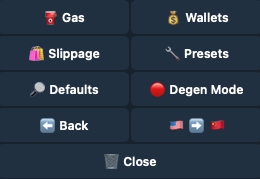
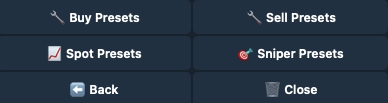

Access 🔧 Presets easily from the ⚙️ Settings menu or by using the /settings command.

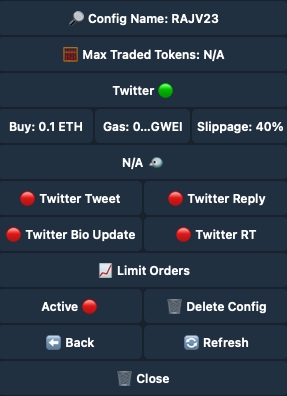
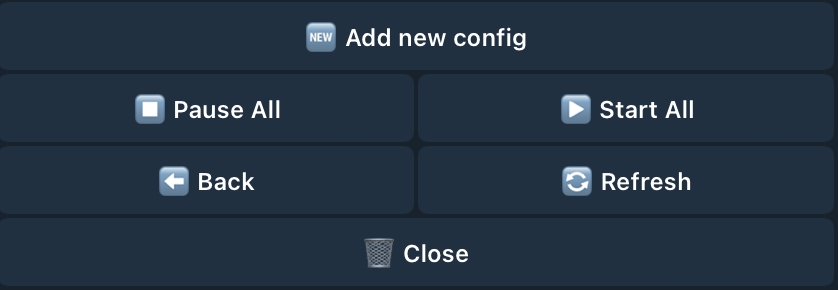

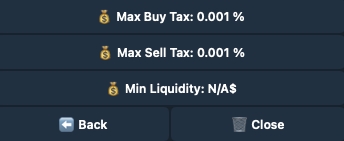
✅ Ensure you set a Copy-Trading Default Wallet.
🕒 Please wait 30 seconds after each change for it to take effect.
📝 Changing your default wallet? Remember to remake your tasks to use the new wallet for future transactions.
Access 🤖 Copy Trade easily from the home menu or by using the /copy command.
Tap 🆕 Add new config.
Add new config
Add a new wallet for copy-trading.
Please enter your desired target address:
Mass Create
Bulk create or import copy-trading target addresses.
Pause All
Pause all active copy-traded wallets.
Start All
Start copy-trading with all active wallets.
After clicking 🆕 Add new config, you’ll be requird to enter:
Target address you'd like to copy-trade: Please enter your desired target address:
Desired config name: Please choose a name for this config:
Once you’ve entered the details above, you’ll be prompted to the config menu.
Wallet
Select the wallets to activate for this task.
Config Name
Rename the current config.
Please choose a name for this config:
Target Wallet
Set the wallet you wish to copy-trade.
Max Traded Tokens
Set the maximum number of coins the bot will purchase according to your current configuration.
Please enter your desired amount:
Click 🤖 Copy Presets.
Max Traded Token
Set the maximum number of coins the bot will purchase according to your current configuration.
Please enter your desired amount:
First Interaction
🟢: If enabled, it will trigger trades only when the trader you’re copy-trading interacts with the token for the first time 🔴: If disabled, the bot will not consider whether the trader has previously interacted with the token or not.
🟢: Active
🔴: Inactive
Max Buy
Set the maximum amount you’re willing to buy, regardless of the amount purchased by the target wallet. Max Buy applies to each transaction.
Please enter your desired max buy amount in ETH
Min Trigger Buy
Set the minimum ETH amount purchased by the target wallet required for your transaction to be executed.
Click 📈 Limit Orders.
Click 🆕 Create Limit Order.
Dev Sell
Choose whether to automatically sell the specified amount if the Dev sells any of their tokens. If enabled, the bot will ignore the set profit/loss percentage and only trigger a sale when the Dev sells.
🟢: Active
🔴: Inactive
Sell Amount
Set the % you would like to sell.
Please enter your desired amount:
Profit/Loss
Set take profit or stop loss. • 📈 Take Profit: Use positive values (e.g., +100% for 2x)
• 📉 Stop Loss: Use negative values (e.g., -50% for half)
Please enter your desired amount:
Sell Gas
Set the transaction gas (Max Priority Fee) for selling. Max Fee is automatically calculated using the formula: Base Fee + (Priority Fee × 2).
Please enter your desired amount:
Mev Protect
When MEV Protect is enabled, your transactions will be processed through BloXroute to prevent getting MEVed. If disabled, transactions will be routed through the custom node.
🟢: Active
🔴: Inactive
Social Post
When active, Bloom automatically buys posted contracts according to your settings. (Including quoted reposts where the contract is taken from the quoted text).
🟢: Active
🔴: Inactive
Social Reply
When active, Bloom automatically buys contracts posted in a post reply according to your settings.
🟢: Active
🔴: Inactive
Social Bio Update
When active, Bloom automatically buys contracts posted in bio the moment the bio changes according to your settings.
🟢: Active
🔴: Inactive
Social Repost
When active, Bloom automatically buys contracts posted in the original rreposted post, following your settings.
🟢: Active
🔴: Inactive
Limit Orders
Back
Return to the previous page.
Slippage
Set the buy slippage percentage.
Please enter your desired amount:
Back
Return to the previous menu.
Close
RClose the current menu.
Delete Order
Deletes the target order.


1% (example)
Choose the preset % to sell.
5% (example)
Choose the preset % to sell.
10% (example)
Choose the preset % to sell.
X %
Choose a custom % amount to sell.
X ETH
Choose a custom ETH amount to sell.
Please enter your desired buy amount in ETH:
Sell Gas
Set the transaction gas (Max Priority Fee) for selling. Max Fee is automatically calculated using the formula: Base Fee + (Priority Fee × 2).
Please enter your desired sell fee amount in GWEI:
Slippage
Set the slippage percentage.
Please enter your desired buy slippage amount in %:
MEV Protect
When MEV Protect is enabled, your transactions will be processed through BloXroute to prevent getting MEVed. If disabled, transactions will be routed through the custom node. ❓ FAQs
🟢: Active
🔴: Inactive
Limit Orders
Generate PnL
Generate the PnL pic.
PnL pic to be shared.
Hide Position
Hide the current position.
Close
Close the current menu.





Delete All
Delete all copy-trading configurations
Back
Return to the previous page.
Close
Close the current menu.
Max Buy
Set the maximum amount you’re willing to buy, regardless of the amount purchased by the target wallet. Max Buy applies to each transaction.
Please enter your desired max buy amount in ETH:
Min Trigger
Set the minimum ETH amount purchased by the target wallet required for your transaction to be executed.
Please enter your desired min trigger buy amount in ETH:
Max Trigger
Set the maximum ETH amount purchased by the target wallet required for your transaction to be executed.
Please enter your desired min trigger buy amount in ETH:
Min MCap
Set the minimum market cap you are willing to buy at.
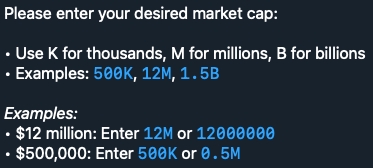
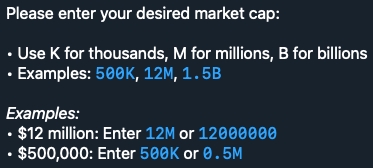
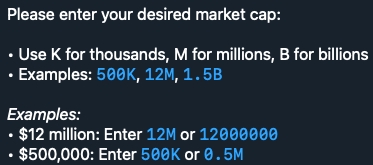
Please enter your desired market cap (eg: 12M / 1K / 10000):
Max MCap
Set the maximum market cap you are willing to buy at.
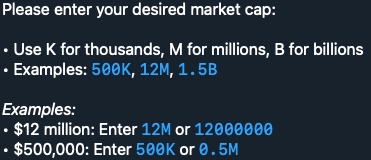
Please enter your desired market cap (eg: 12M / 1K / 10000):
Follow Sell
Choose whether to sell when the target wallet sells.
When enabled, the bot will mirror the selling percentage of the trader - for example, if they sell 50% of their position, the bot will also sell 50% of your position
🟢: Active
🔴: Inactive
Buy Only Once
Buy the coin only once, even if the target wallet makes multiple purchases. If you’re using multiple wallets, ensure it’s turned ON for each one.
🟢: Active
🔴: Inactive
Buy Exact
Buy the same ETH amount as the target wallet.
🟢: Active
🔴: Inactive
Buy %
Buy a percentage of the amount the target wallet buys. You can set it above 100% to purchase more than the target wallet (eg. 130% buys an additional 30% of the amount purchased by the target wallet).
Buy Amount: Set it to the desired percentage to turn it on
Buy Fixed
Buy a fixed ETH amount, regardless of the target wallet’s amount.
🟢: Active
🔴: Inactive
Buy Gas
Set the transaction gas (Max Priority Fee) for buying. Max Fee is automatically calculated using the formula: Base Fee + (Priority Fee × 2).
Please enter your desired amount:
Sell Gas
Set the transaction gas (Max Priority Fee) for selling. Max Fee is automatically calculated using the formula: Base Fee + (Priority Fee × 2).
Please enter your desired amount:
Buy Slippage
Set the buy slippage percentage.
Please enter your desired amount:
Sell Slippage
Set the sell slippage percentage.
Please enter your desired amount:
MEV Protect
your transactions will be processed through BloXroute to prevent getting MEVed. If disabled, transactions will be routed through the custom node.
🟢: Active
🔴: Inactive
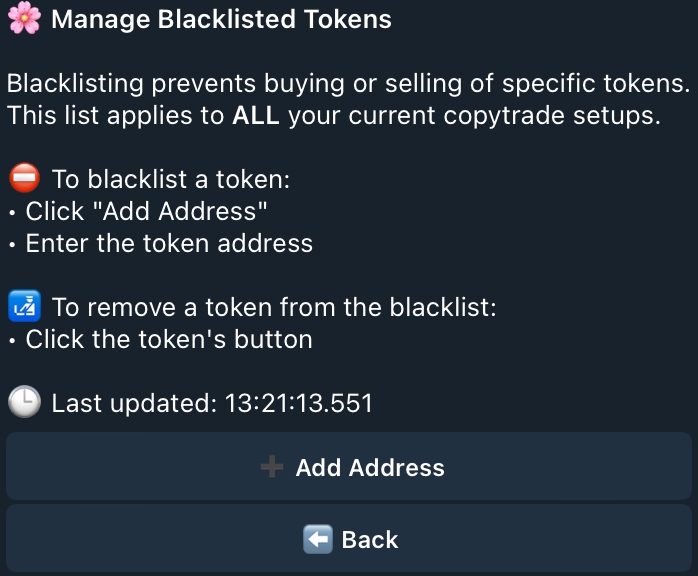
Blacklist
Exclude specific addresses from copy-trading.
Limit Orders
Active
🟢: Active
🔴: Inactive
Delete Config
Delete the current config.
Back
Return to the previous page.


Max Trigger Buy
Set the maximum ETH amount purchased by the target wallet required for your transaction to be executed.
Min MCap
Set the minimum market cap you are willing to buy at.
Please enter your desired market cap (eg: 12M / 1K / 10000):
Max MCap
Set the maximum market cap you are willing to buy at.
Please enter your desired market cap (eg: 12M / 1K / 10000):
Follow Sells
Choose whether to sell when the target wallet sells.
When enabled, the bot will mirror the selling percentage of the trader - for example, if they sell 50% of their position, the bot will also sell 50% of your position
🟢: Active
🔴: Inactive
Buy Only Once
Buy the coin only once, even if the target wallet makes multiple purchases. If you’re using multiple wallets, ensure it’s turned ON for each one.
🟢: Active
🔴: Inactive
Buy Exact
Buy the same ETH amount as the target wallet.
🟢: Active
🔴: Inactive
Buy %
Buy a percentage of the amount the target wallet buys. You can set it above 100% to purchase more than the target wallet (eg. 130% buys an additional 30% of the amount purchased by the target wallet).
Buy Amount: Set it to the desired percentage to turn it on
Buy Fixed
Buy a fixed ETH amount, regardless of the target wallet’s amount.
🟢: Active
🔴: Inactive
Buy Gas
Set the transaction gas (Max Priority Fee) for buying. Max Fee is automatically calculated using the formula: Base Fee + (Priority Fee × 2).
Please enter your desired amount:
Sell Gas
Set the transaction gas (Max Priority Fee) for selling. Max Fee is automatically calculated using the formula: Base Fee + (Priority Fee × 2).
Please enter your desired amount:
Buy Slippage
Set the buy slippage percentage.
Please enter your desired amount:
Sell Slippage
Set the sell slippage percentage.
Please enter your desired amount:
Mev Protect
When MEV Protect is enabled, your transactions will be processed through BloXroute to prevent getting MEVed. If disabled, transactions will be routed through the custom node.
🟢: Active
🔴: Inactive
Limit Orders
Back
Return to the previous page.
Slippage
Set the buy slippage percentage.
Please enter your desired amount:
Back
Return to the previous menu.
Close
RClose the current menu.
Delete Order
Deletes the target order.